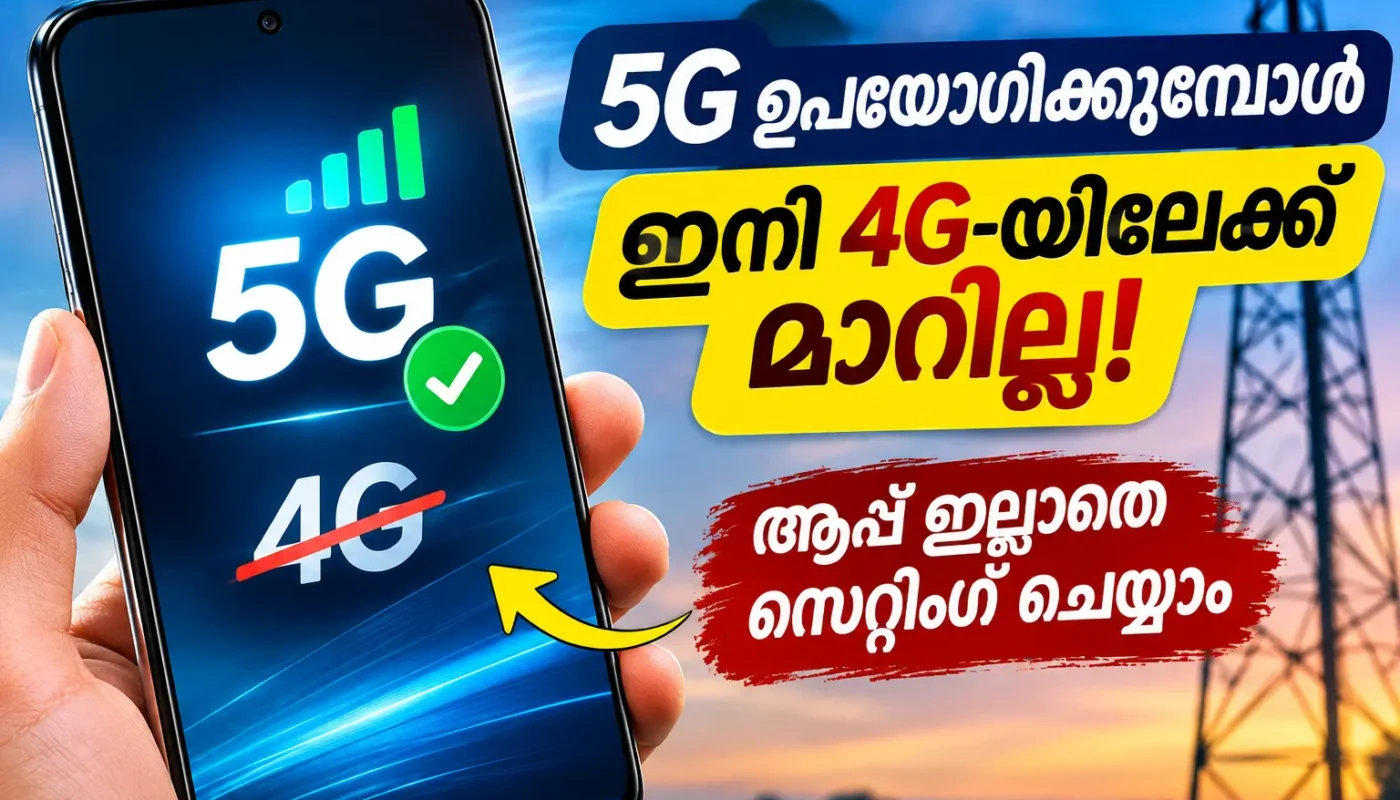
Imagine watching your favourite videos, downloading large files, or using your mobile hotspot with unlimited 5G data. Everything works smoothly until your phone suddenly switches from 5G to 4G.
Your internet speed drops, and the daily data allowance included in your recharge plan starts getting used up.
Sound familiar?
This is a frustrating experience for many smartphone users, especially those who rely on unlimited 5G benefits.
But did you know that some Android smartphones have a hidden setting that allows you to try 5G Only mode without installing any additional application?
Let’s understand how it works.
Why Does Your Phone Automatically Switch from 5G to 4G?
Most Android smartphones automatically switch between 5G and 4G depending on signal strength and network availability.
Even when you’re in a 5G coverage area, your phone may switch back to 4G because of weak signals, indoor coverage limitations, or changes in network conditions.
This automatic switching helps maintain connectivity. However, it can become inconvenient when you want to use your unlimited 5G benefits.
Can Switching to 4G Consume Your Daily Data Limit?
Yes, depending on your mobile operator and recharge plan.
For example, Jio provides unlimited 5G data benefits with eligible recharge plans in supported coverage areas.
When the phone switches to 4G, mobile data usage may be deducted from the daily data allowance.
As a result, users may notice their regular data balance decreasing even though they have an unlimited 5G benefit.
How to Try 5G Only Mode Without an App
Some Android smartphones include a hidden network testing menu.
You can access it using a simple dialer code.
Step 1: Open Your Phone Dialer
Open the Phone app on your Android smartphone and enter:
*#*#4636#*#*
On supported devices, a Testing menu will open automatically.
Step 2: Select Phone Information
Tap Phone Information.
If you have two SIM cards, select the Phone Information option associated with your 5G SIM.
Step 3: Find Preferred Network Type
Scroll down until you see:
Set Preferred Network Type
Before changing anything, take a screenshot of the current network setting. This will help you restore it later.
Step 4: Choose NR Only
Tap the network selection menu and choose:
NR Only
NR stands for New Radio, the technology used for 5G.
On compatible devices and networks, this option allows your phone to attempt a 5G-only connection instead of automatically switching back to 4G.
Step 5: Check Your Internet Connection
After selecting NR Only, check whether your phone connects to the 5G network.
If 5G coverage and device support are available, your internet connection may continue using 5G.
However, this setting cannot create 5G coverage where no compatible signal exists.
What If the Dialer Code Doesn’t Work?
The hidden testing code may not work on every Android smartphone.
Some devices allow users to access similar settings through a compatible network mode application.
These apps generally provide a shortcut to the phone’s existing network settings. They do not improve signal strength or unlock unlimited data.
If the built-in method works, there is no need to install an extra app.
Important Things You Should Know
Before selecting NR Only, remember these points:
- Some smartphones may lose incoming and outgoing calling functionality in 5G Only mode.
- If a compatible 5G signal is unavailable, your mobile network may disconnect.
- This method may not work properly on networks that depend on 4G connectivity for their 5G service.
- Changing the network setting does not activate unlimited 5G on an ineligible recharge plan.
For regular everyday usage, automatic network selection is usually more reliable.
If you experience network problems, return to the testing menu and restore the original network setting you saved earlier.
Watch the Video Tutorial
Want to see the process on an actual smartphone?
Watch the step-by-step video below to understand how to access the hidden network settings and select 5G Only mode.
Video credit: FTM creation
Final Words
If your Android phone frequently switches from 5G to 4G, the hidden NR Only setting may be worth exploring.
The interesting part is that compatible Android smartphones may allow you to access this feature without installing any application.
Just remember that 5G Only mode is not suitable for every device or mobile network. Always keep your original network setting saved so you can restore it whenever necessary.