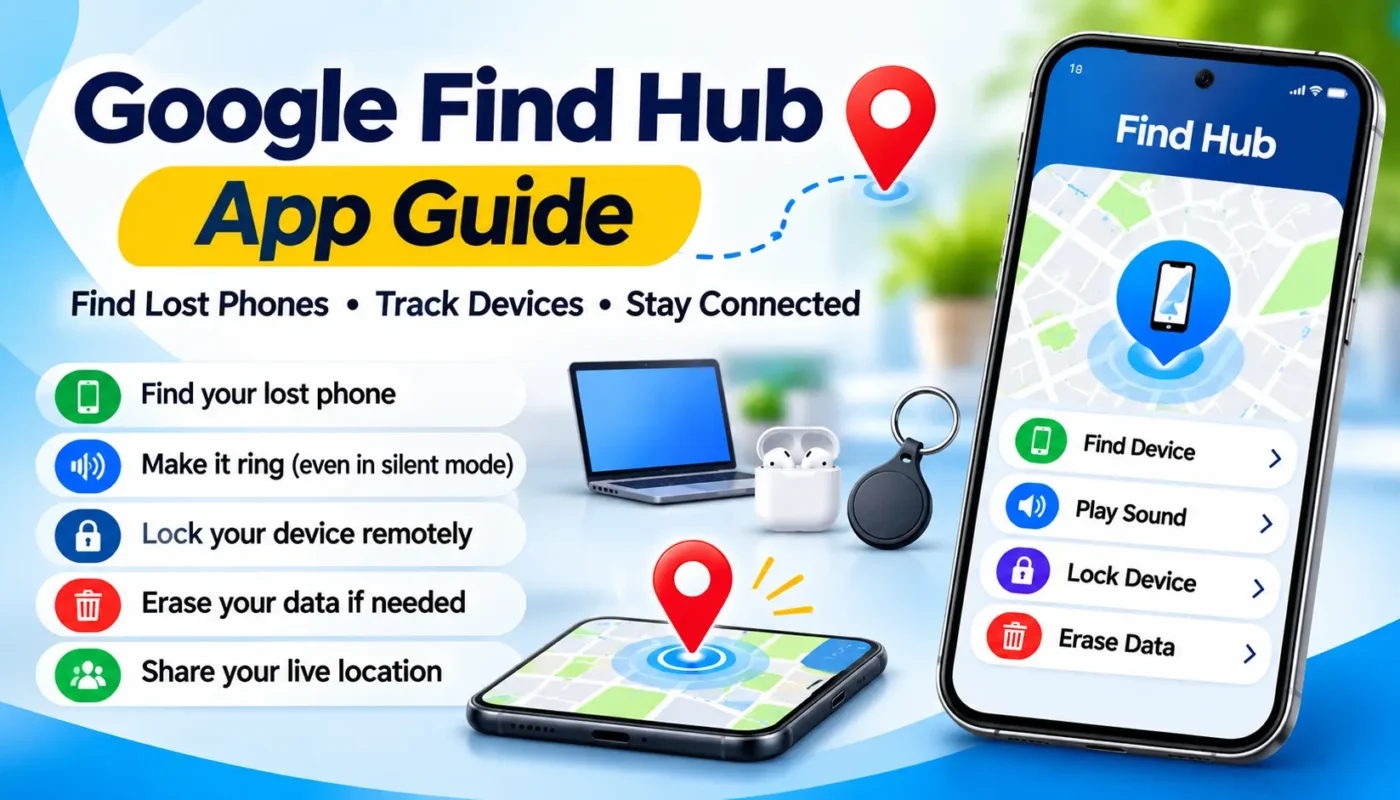
Have you ever lost your smartphone, forgotten where you kept your keys, or worried about losing your important belongings while travelling? Finding these things can sometimes be difficult. Google offers a useful solution called Google Find Hub.
Google Find Hub is an app that helps you find lost Android phones, tablets, headphones and other supported accessories. You can see their location on a map, make a nearby device ring, lock a lost phone remotely and even erase its data when necessary.
The app also supports location sharing. This allows you to share your live location with friends and family members who have agreed to share their location with you.
In this complete guide, you will learn what Google Find Hub is, how it works, how to download it, how to find a lost phone, how to track compatible items and how to use its important features step by step.
What Is Google Find Hub?
Google Find Hub is Google’s device-finding and location-sharing service for Android users. It was previously known as Find My Device.
Google introduced Find Hub as an expanded version of its earlier Find My Device service in 2025. The new experience brings device finding, compatible item tracking and location sharing together.
The app can help you:
- Find your lost Android smartphone.
- Locate a lost tablet or supported smartwatch.
- Find compatible Bluetooth tracking tags.
- Make a lost device ring.
- Lock your lost phone remotely.
- Display a message and contact number on your phone’s lock screen.
- Erase your phone’s data remotely if necessary.
- Share your live location with friends and family.
- View the last known location of supported devices, including in some offline situations.
One important thing to understand is that Find Hub is not a secret tracking application. It uses your Google Account, device settings and location permissions to provide these services.
Google Find Hub App – Download Link
You can download the official Google Find Hub application from the Google Play Store.
App Name: Google’s Find Hub
Developer: Google LLC
Platform: Android
Category: Tools
Official Download Link:
Always check that the developer name is Google LLC before installing the application.
You can also access Google’s Find Hub service through a web browser:
Can You Use Google Find Hub on iPhone?
The Google Find Hub application is primarily designed for Android devices. There is no need to install an unofficial application on an iPhone.
If you are using an iPhone, you can access Google’s supported web services through a browser. However, the complete Android app experience and all device-finding features may not be available on iOS.
Main Features of Google Find Hub
Let’s look at the most useful features of this application.
1. Find Your Lost Android Phone
This is one of the most important features of Google Find Hub.
Imagine that you have gone shopping and cannot remember where you kept your smartphone. You can open Find Hub on another device and check the location of your lost phone.
The application can display the current or last available location on a map.
You can use this information to understand where your phone was last detected.
2. Find Your Phone Even When It Is Offline
One of the useful features of the Find Hub network is offline finding.
Normally, finding a phone is easier when it is switched on and connected to the internet. However, Find Hub can also use encrypted recent location information and its network of nearby Android devices to help locate supported devices.
For example, if your phone loses its internet connection, nearby participating Android devices may help detect its Bluetooth signal and report an encrypted location.
This feature depends on the device, its settings and the availability of nearby participating devices.
Important: Offline finding does not mean every phone can always be located after switching off or losing its battery. The available location depends on device compatibility and the network settings.
3. Play Sound – Make Your Lost Phone Ring
Have you ever searched your entire house because you could not remember where you placed your phone?
The Play Sound feature can help.
When you select your phone in Find Hub and tap Play Sound, the phone rings at full volume for up to five minutes, even if it is set to silent or vibration mode.
This is especially useful when your phone is somewhere inside your home, office or nearby location.
4. Locate Bluetooth Tracking Tags
Google Find Hub also supports compatible Bluetooth tracking accessories.
You can attach a supported tracking tag to items such as:
- House keys
- Wallets
- Travel bags
- Luggage
- Backpacks
- Other personal belongings
If you misplace an item, you can open Find Hub and check the available location information.
You must first pair a compatible tracking accessory with your device.
Not every Bluetooth tracker works with Find Hub. Always check whether the product specifically supports Google’s Find Hub network before purchasing it.
5. Share Your Live Location
Find Hub also provides location-sharing features.
For example, imagine that a family member is travelling to another town. They can share their location with you, allowing you to see their location according to the sharing settings.
This can be useful for:
- Family members travelling together.
- Friends meeting at a particular place.
- Checking whether someone has reached home.
- Coordinating group travel.
Location sharing requires the other person to agree to share their location. You cannot use this feature to secretly track someone.
6. Remotely Lock Your Lost Phone
If your smartphone is lost or stolen, protecting your personal information is important.
Find Hub provides an option to secure a lost Android phone remotely.
You can lock the device and, where supported, add a message or contact number to its lock screen.
For example, you can display:
” This phone is lost. Please contact me at 98XXXXXXXX.”
If someone finds your phone, they may use the displayed information to contact you.
7. Erase Your Phone’s Data Remotely
If you cannot recover your lost phone and are worried about personal information, you can use the Factory Reset option.
This can permanently erase the data stored on your Android device.
Before using this option, remember:
- Factory reset removes personal data from the device.
- Some removable SD card data may not be erased.
- After a factory reset, the phone will no longer be available in Find Hub.
- You may need your Google Account password to use the phone again because of Android device protection.
Use this option only when necessary. It should not be your first step when trying to recover a misplaced phone.
How to Set Up Google Find Hub on Your Android Phone
Before you lose your phone, it is important to check that the required settings are enabled.
Follow these steps.
Step 1: Open Your Android Phone Settings
Open the Settings application on your Android smartphone.
Find the Google or Google Services section.
The exact menu names may differ depending on your Android version and phone manufacturer.
Step 2: Check Find Hub Settings
Look for the Find Hub option in your Google settings.
Open it and check whether the device-finding feature is enabled.
Make sure your phone is connected to your Google Account.
Step 3: Enable Location
Open your phone’s Location settings and turn on Location services.
Location access helps Google determine the device’s location.
Step 4: Enable Offline Finding
Open the Find Hub settings and check the available Find Hub network or offline-finding options.
Choose the appropriate offline finding setting supported by your device.
Your Android phone should also have a screen lock, such as a PIN, pattern or password, to participate in the network’s encrypted offline-finding features.
Step 5: Check Your Google Account
Make sure you remember the Google Account email address and password connected to your phone.
This is important because you will need the account to access Find Hub from another device.
Tip: Do not wait until your phone is lost to configure these settings.
How to Find a Lost Android Phone Using Google Find Hub
Now let’s understand how to find a lost smartphone.
You do not need to use the lost phone itself. You can use another Android phone, tablet or a supported web browser.
Method 1: Using Another Android Phone
Follow these steps:
Step 1: Open the Google Play Store on another Android phone.
Step 2: Search for Google’s Find Hub and install the official application if it is not already installed.
Step 3: Open the Find Hub application.
Step 4: Sign in using the Google Account connected to your lost phone.
If you are helping a friend, they can sign in using the guest option on your device.
Step 5: Select the lost phone from the list of available devices.
Step 6: Wait for the application to retrieve its current or last known location.
The location will appear on the map if location information is available.
Step 7: Choose the action you need.
You can play a sound, secure the device or erase its data.
Method 2: Using a Computer or Browser
You can also use Find Hub without installing the application.
- Open Google Chrome or another web browser.
- Visit https://www.google.com/android/find/
- Sign in with the Google Account linked to your lost phone.
- Select the missing device.
- Check the available location information on the map.
- Select Play Sound, Secure Device or Factory Reset when appropriate.
This method is useful if you do not have another Android smartphone.
How to Find a Phone Inside Your Home
Imagine that you have kept your smartphone somewhere in your bedroom, kitchen or living room.
You know the phone is nearby, but you cannot remember where it is.
Here is what you can do:
- Open Find Hub on another device.
- Select your missing phone.
- Tap Play Sound.
- Listen carefully for the ringing sound.
- Follow the sound to locate your phone.
The phone can ring even when it is in silent mode.
This is one of the simplest and most useful features of the application.
How to Find Lost Items Using Bluetooth Tags
Google Find Hub is not limited to smartphones.
It can also help locate compatible tracking accessories.
For example, imagine that you frequently forget where you keep your house keys.
You can purchase a compatible Bluetooth tracking tag and attach it to your keychain.
How to Use a Tracking Tag
- Purchase a Bluetooth tracker that supports the Google Find Hub network.
- Turn on Bluetooth on your Android phone.
- Follow the manufacturer’s pairing instructions.
- Connect the tracking accessory to Find Hub.
- Give the item a suitable name, such as House Keys or Travel Bag.
- Open Find Hub whenever you need to check its location.
If the item is lost, you can view the available location information through the application.
Some supported accessories may offer additional features such as nearby finding or precision finding. These features depend on the tag and phone hardware.
How to Share Your Location with Friends and Family
Find Hub can also help people stay connected.
For example, if you are travelling with friends, you can share your live location so they can see where you are.
The other person must agree to the location-sharing request.
The general process is:
- Open Google Find Hub.
- Open the People or location-sharing section, if available on your version.
- Select the option to share your location.
- Choose the contact or sharing option.
- Select the sharing duration, if available.
- Confirm the sharing request.
You can also use Google Maps location sharing where appropriate.
Remember that you should share your location only with people you trust.
Important Tips for Using Google Find Hub
Here are some useful tips to get the best experience.
1. Keep Your Google Account Secure
Use a strong password and enable two-step verification.
2. Enable Location Services
Make sure Location is enabled on your Android phone.
3. Keep Find Hub Enabled
Check the Find Hub settings before travelling.
4. Use a Screen Lock
A PIN, pattern or password helps protect your phone and supports the encrypted offline-finding network.
5. Keep Your Phone Updated
Install available Android security updates and update the Find Hub application.
6. Remember Your Google Account Details
You may need your Google Account to locate or secure a lost device.
7. Test the Play Sound Feature
Try the feature at home so that you know how it works before you need it.
8. Use Compatible Bluetooth Tags
Check the official Find Hub compatibility before buying a tracking accessory.
Is Google Find Hub Safe and Secure?
Google uses encrypted location information in its Find Hub network.
According to Google, location information shared through this network is end-to-end encrypted and is not visible even to Google.
However, you should still protect your Google Account and phone.
Keep these safety points in mind:
- Never share your Google Account password with strangers.
- Do not share your live location with unknown people.
- Use a secure screen lock.
- Do not install unofficial tracking applications.
- If your phone is stolen, avoid confronting the suspected thief yourself.
- Contact the police and your mobile network operator when necessary.
What Are the Limitations of Google Find Hub?
Although Find Hub is useful, it does have some limitations.
1. Internet and Location Availability
Some features work best when the phone is connected to the internet and has location services enabled.
2. Battery Limitations
If the phone has no power, you may only see previously available location information. Certain supported devices may provide offline or powered-off finding capabilities.
3. Compatible Accessories
Not all Bluetooth trackers are supported. You need a compatible accessory.
4. Hardware Requirements
Advanced features such as Ultra-Wideband (UWB) precision finding require compatible hardware.
5. Location Accuracy
The location shown on the map may not always be exact. Accuracy depends on available location signals and device conditions.
6. Regional Availability
Some features and supported accessories may vary by country, device and software version.
Frequently Asked Questions (FAQs)
1. Is Google Find Hub free?
Yes. Google’s Find Hub application is available as a free download from the Google Play Store. Some compatible tracking accessories must be purchased separately.
2. Can I find my lost phone if it is switched off?
In some situations, Find Hub may show an encrypted recent location or support offline finding. However, this depends on the phone model, settings and available network support. Not every switched-off phone can be located.
3. Can I find my phone without an internet connection?
The Find Hub network can help locate supported offline devices using nearby participating Android devices. However, this is not guaranteed in every location.
4. Can I make my lost phone ring in silent mode?
Yes. The Play Sound feature can make your phone ring at full volume for up to five minutes, even when silent or vibration mode is enabled.
5. Can I track another person’s phone?
You cannot secretly track someone through Find Hub. The other person must use the appropriate account access or voluntarily share their location.
6. Does Google Find Hub work on iPhone?
The dedicated Find Hub application is designed for Android. iPhone users can access supported Google services through a browser, but the full Android experience is not available.
7. Can I use Find Hub on a computer?
Yes. Visit https://www.google.com/android/find/ and sign in with your Google Account.
8. Can I track my lost wallet?
Yes, if you attach a compatible Bluetooth tracking tag to your wallet and configure it with Find Hub.
9. Does Find Hub show the exact location of a lost phone?
It shows the best available location information. The accuracy depends on GPS, Wi-Fi, Bluetooth and other available signals.
10. What happens when I erase my lost phone?
The device’s data is erased through a factory reset. After this, it will no longer be available in Find Hub.
Final Words
Google Find Hub is a useful application for anyone who uses an Android smartphone.
It can help you find misplaced phones, locate supported accessories, protect your personal information and share your location with people you trust.
The most important thing is to configure the required settings before your phone gets lost.
If you have an Android smartphone, install the official Google Find Hub application, check its settings and learn how to use its features.
A few minutes of preparation today may help you avoid a lot of trouble in the future.
Download Google Find Hub:
https://play.google.com/store/apps/details?id=com.google.android.apps.adm
Official Website:
https://www.google.com/android/find/
Official References:


